Staff Roles and Permissions
Purpose
Use this page to fully configure role templates, permission sets, default role behavior, and staff assignment flow.
Main model
Staff roles are managed as reusable role templates:
- Create a template name.
- Select permissions for that template.
- Assign staff members to that template.
Each template can be reused across many staff members.
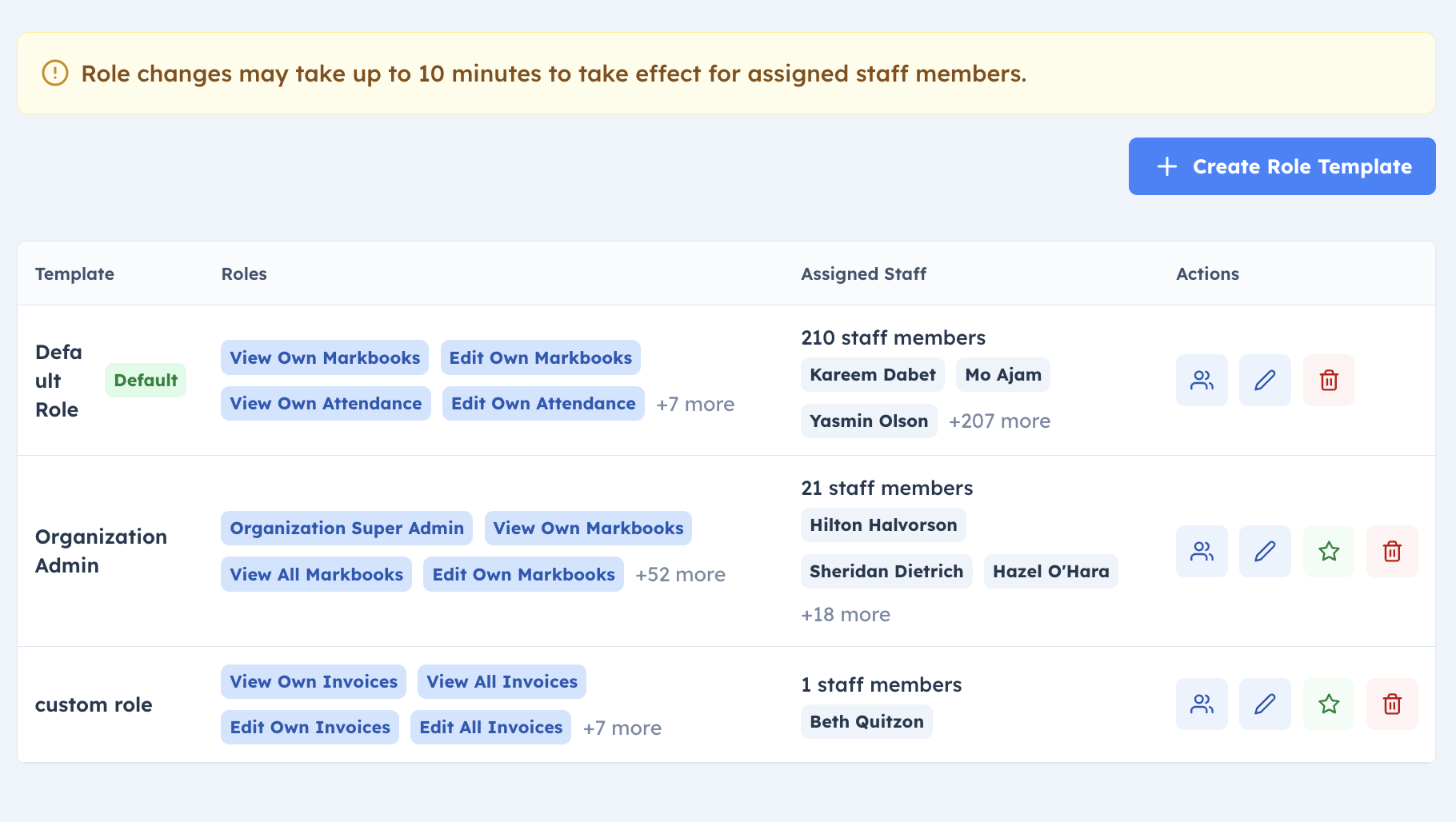
Default role behavior
- Organizations start with starter templates, including Default Role and Organization Admin.
- Each organization has one active default role template.
- New staff/teachers (manual create or upload) are assigned to the current default template automatically.
- You can change which template is default at any time.
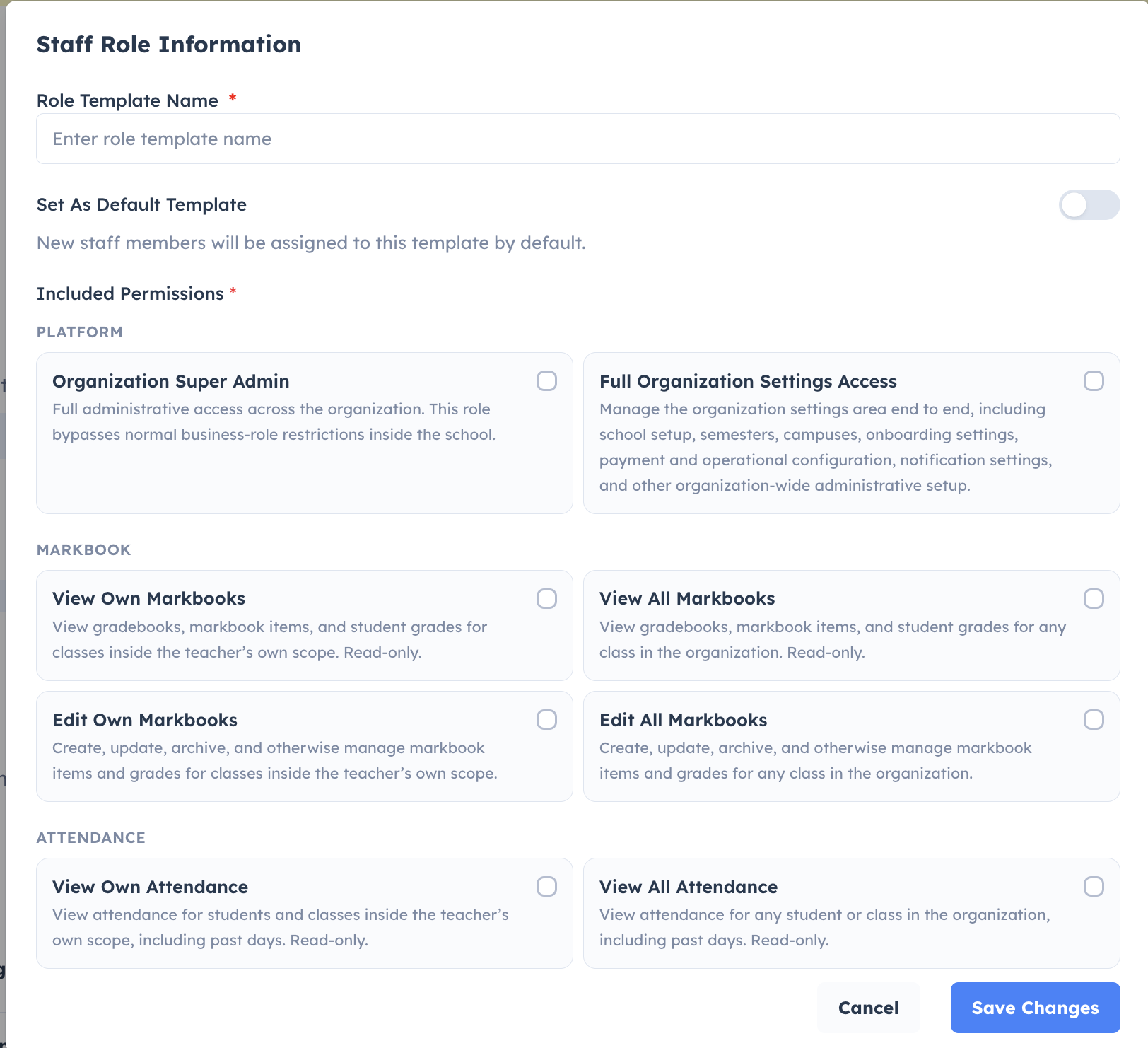
Create a custom role template
- Open Organization → Staff Roles.
- Click Create Role Template.
- Enter a clear template name.
- Select all permissions needed for that job function.
- Optionally set it as default.
- Save.
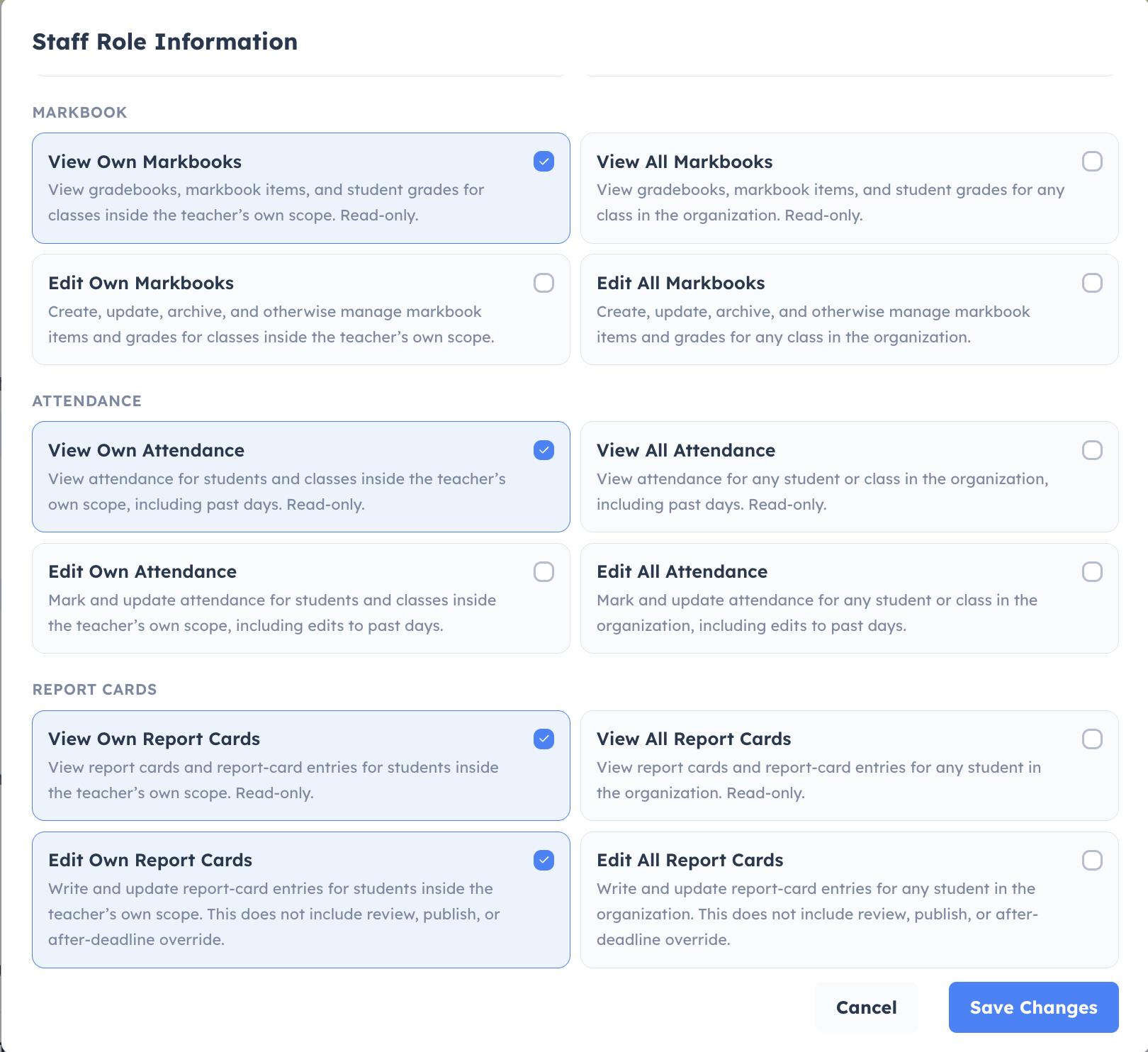
Implied permissions (auto-selected permissions)
Some permissions depend on other permissions.
When you select a higher-level permission, the required base permissions are selected automatically.
Examples:
- If you select Edit Own Markbooks, View Own Markbooks is selected automatically.
- If you select Create Teachers or Modify Teachers, View Teachers is selected automatically.
- If you select Upload Students, View All Students is selected automatically.
This protects role setup from missing required access.
Important behavior:
- If you remove a base permission, related higher-level permissions that depend on it may also be removed.
Permission examples
Academic delivery
- Edit Own Markbooks: manage markbook entries in own scope.
- Edit Own Attendance: mark/update attendance in own scope.
- Edit Own Report Cards: write/update report-card entries in own scope.
Student and family operations
- View All Students: access student records organization-wide.
- Modify All Families: update family profiles organization-wide.
- Upload Students: run bulk student upload.
Staff and platform administration
- View Teachers: view teacher profiles.
- Create Teachers / Modify Teachers: create or edit teacher accounts.
- Manage Staff Role Templates: create/edit/delete/assign templates.
- Full Organization Settings Access: broad settings/config access.
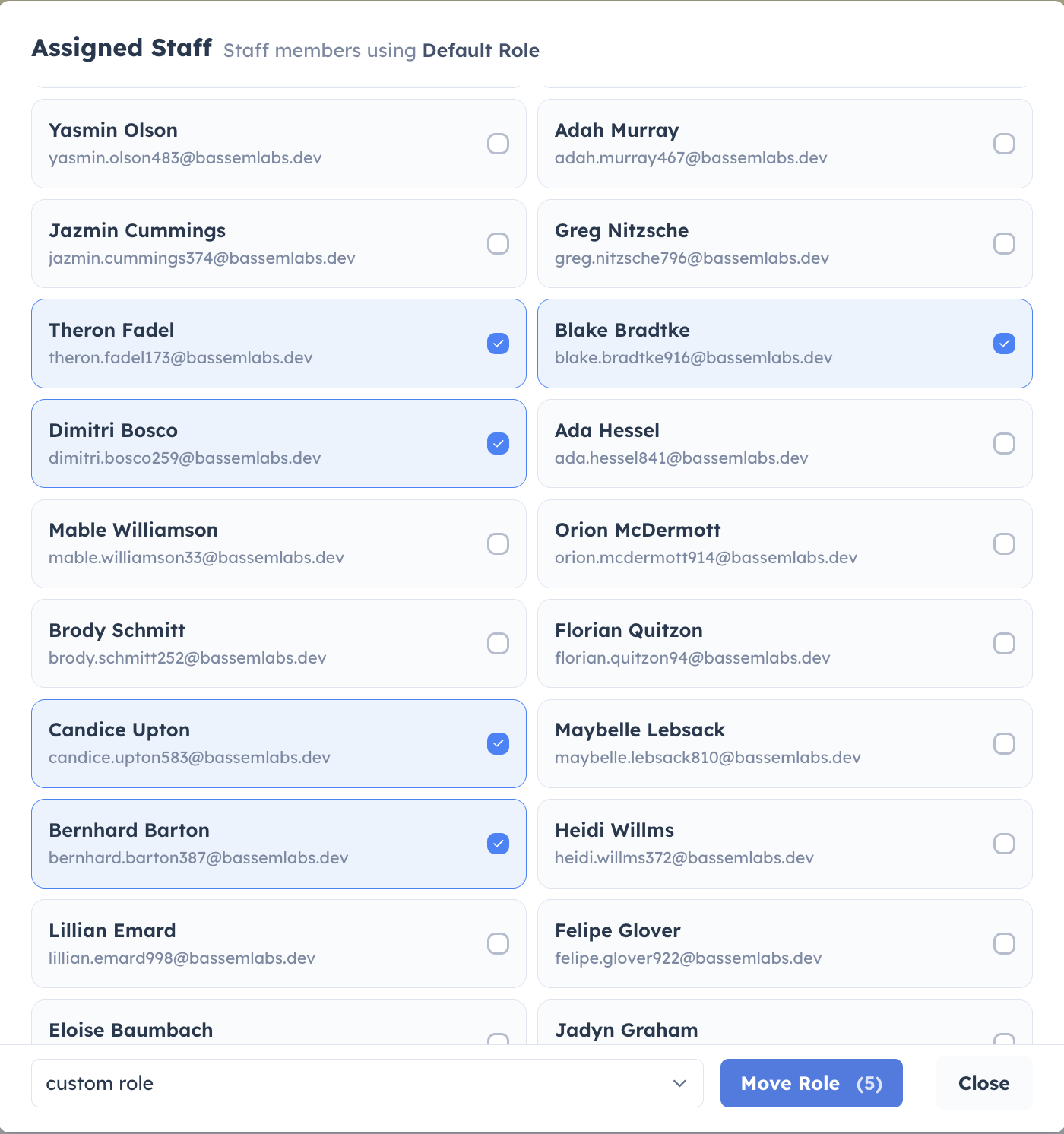
Assign staff members to a role
- In Organization → Staff Roles, open the role row.
- Click Manage assigned staff.
- Select one or more staff members.
- Choose the destination role template.
- Click Move Role.
Important rules
- Managing role templates requires Manage Staff Role Templates permission.
- Role changes can take up to 10 minutes to fully apply.
- Role template names must be unique in the organization.
- A role template must include at least one permission.
- Default template cannot be deleted.
- A template with assigned staff cannot be deleted.
- Some permissions automatically include required base permissions.