Step 8: Configure Email Templates
Goal
Set up the emails BassemLabs sends during important school workflows, so families and staff receive clear, warm, and consistent messages from your organization.
Email templates are not just wording. They shape the first impression parents get when an application moves forward, a report card is published, an invoice is created, or a teacher is invited to the platform.
Who receives the emails
Email templates are organized by audience:
- Parents receive admission, enrollment, re-registration, attendance, report card, invoice, and parent portal messages.
- Teachers receive teacher invitation emails and report card review messages.
Use the Parents and Teachers tabs to switch between those audiences.
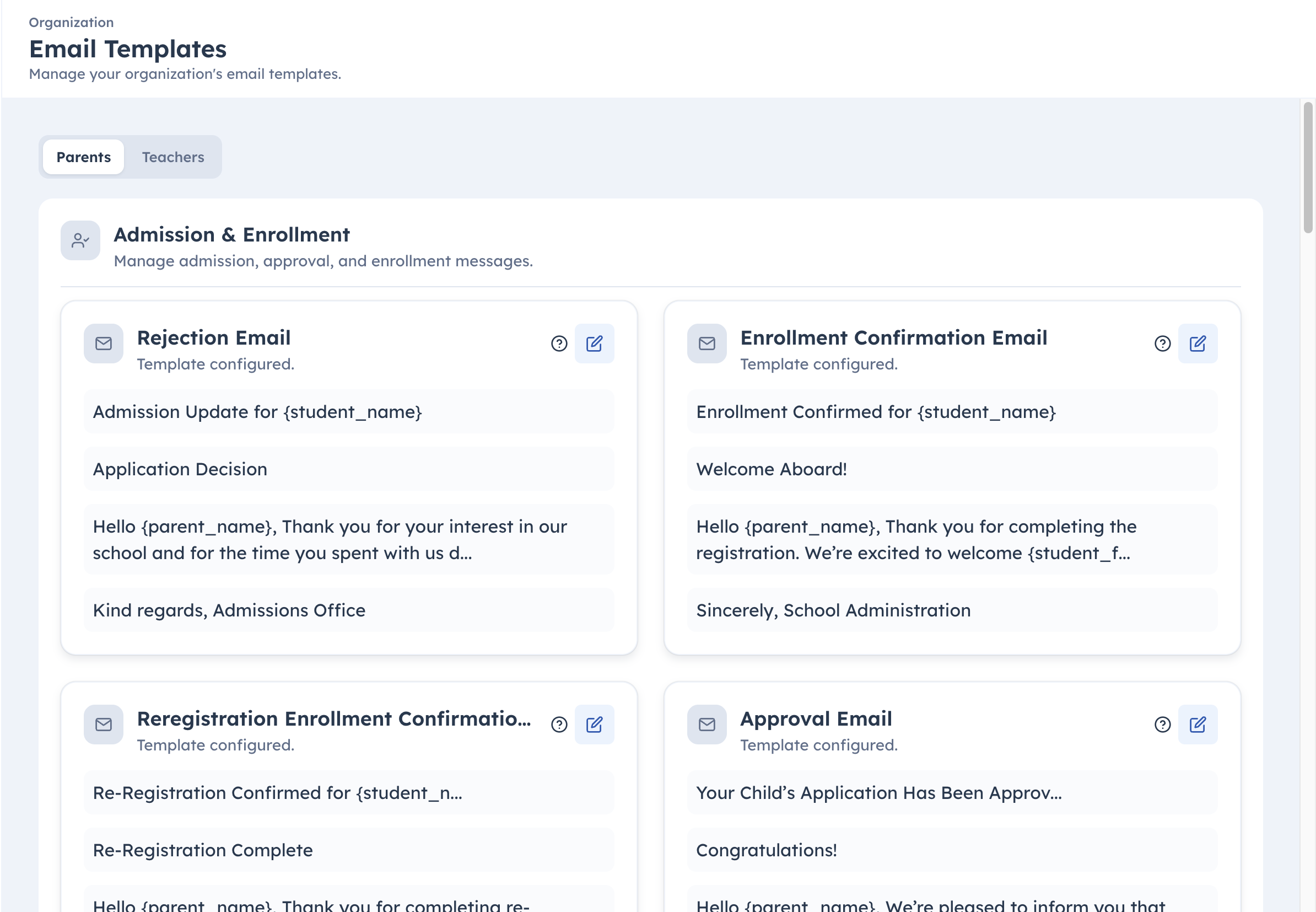
How templates are grouped
Parent templates are grouped by workflow:
- Admission & Enrollment: application decisions, assessments, enrollment confirmations, re-registration invitations, parent invitations, and withdrawal messages.
- Attendance Notifications: late, absent, and sign-out emails.
- Report Cards: report card publication emails.
- Invoices: invoice creation and auto-pay failure messages.
Teacher templates are grouped under Teacher Communications.
Each card shows what the template is for and gives admins a quick way to review or edit the message.
Editing a template
Open a template card to create or edit the message.
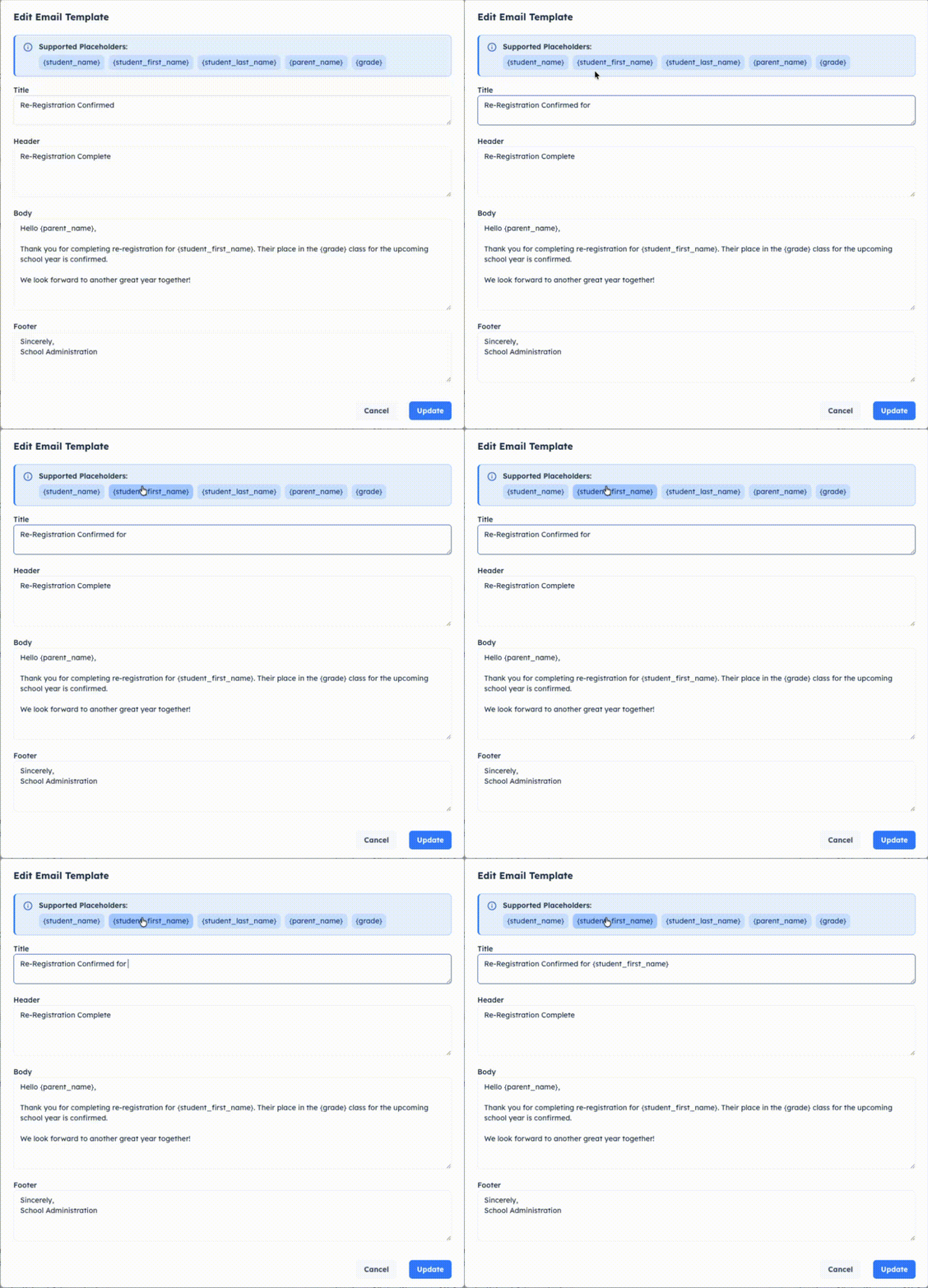
Each template has four parts:
- Title: the email subject.
- Header: the opening message.
- Body: the main content.
- Footer: the closing note or signature.
Keep each part focused. The best templates sound personal, but still tell the reader exactly what happened and what they should do next.
Using placeholders
Placeholders automatically personalize the email. For example, a template can include values like:
{student_name}{student_first_name}{parent_name}{grade}{school_name}{login_url}{invoice_link}
The placeholders available depend on the template. Attendance emails have attendance details, invoice emails have invoice links, and teacher emails have teacher details.
Click a placeholder to insert it into the field you are editing. This helps admins use the exact supported format without typing it manually.
When templates are sent
Templates are used by automated school workflows, including:
- approving, rejecting, assessing, withdrawing, or enrolling applicants
- inviting families to re-register
- inviting parents to the portal
- notifying families about attendance updates
- notifying parents when report cards are published
- notifying teachers when report card changes are requested
- sending invoice and auto-pay failure messages
- inviting new teachers to the platform
If a workflow sends an email, the matching template controls the tone and message.
Access and setup notes
Email template setup is an admin-level task. Organization super admins can modify templates.
Before going live:
- Review every parent-facing template.
- Review teacher invitation and report card review messages.
- Keep important links such as
{login_url}and{invoice_link}in the relevant templates. - Use language that sounds like your school.
Complete the step
After the important templates are reviewed, click Continue to Next Step.