Profile Sections and Groups
Profile sections and groups are the structure behind custom fields. Set them up first, because they decide where fields live, whether they appear, and how admins can organize the profile.
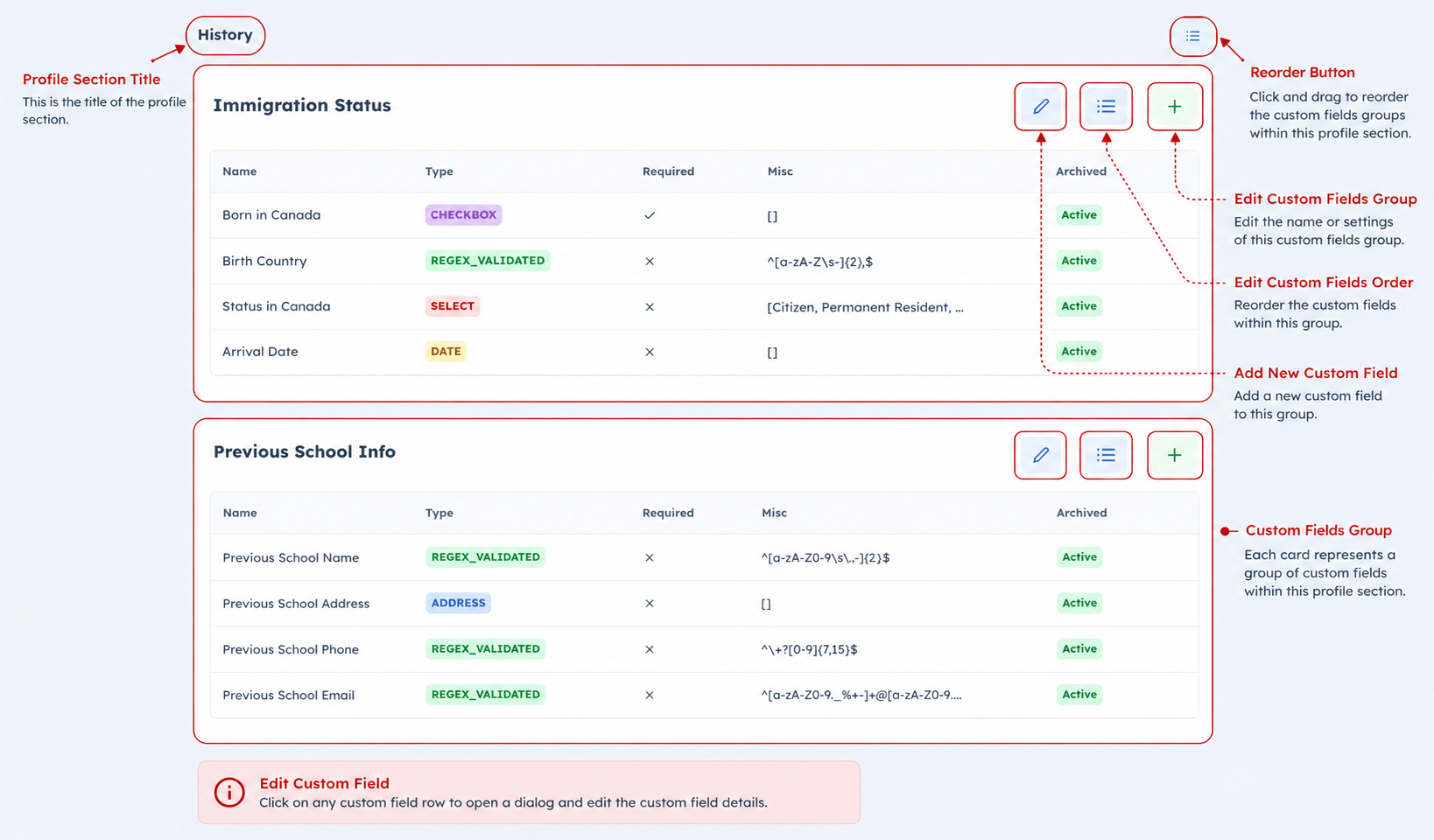
This screenshot shows the main working area: profile section title, custom field groups, the group action buttons, field rows, field types, active/archive state, and the reorder controls.
Profile sections
Profile sections are the large areas of a profile, such as Profile, Health, Documents, Waitlist, Forms, or Assessment.
Each user type has its own active section list:
- Student profile sections
- Parent profile sections
- Teacher profile sections
If a section is inactive for a user type:
- groups assigned to that section are visually marked as disabled in setup
- groups in that section are hidden from profile and onboarding display flows
- those groups are not used when BassemLabs collects onboarding field groups
For students, Waitlist is required and cannot be removed.
Editing profile sections
Use Edit on the profile sections card to choose which sections are active for that user type.
In the edit dialog:
- selected sections are active
- unselected sections are inactive
- required sections cannot be removed
- saving the dialog changes which sections are available for groups and display flows
Use Reorder Sections to change the order in which profile sections appear to users.
Groups
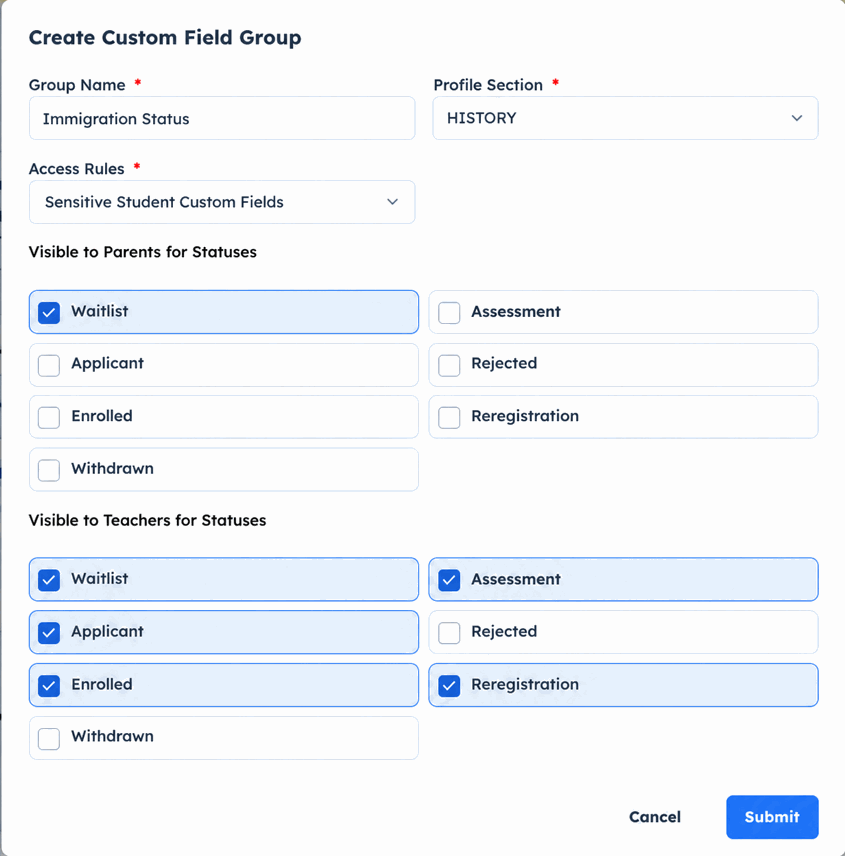
A custom field group is a bundle of related fields. A group is where you decide which user type it belongs to, which profile section it lives in, which access rules protect it, and, for student groups, which student statuses should show it.
Each group has:
- a name
- a user type
- a profile section
- optional hints
- access rules
- student-status visibility settings, for student groups only
- sort order
Group names must be unique within the same user type and profile section.
Creating a group
Use Add Group on the Student, Parent, or Teacher custom fields page.
When creating a group:
- choose a clear group name
- choose the profile section where the group belongs
- choose the access rules that protect the group
- for student groups, choose Visible to Parents for Statuses and Visible to Teachers for Statuses
The group appears under its profile section after it is created.
Editing a group
Each group card has an Edit Group button in the card actions. Use it to update:
- group name
- profile section
- access rules
- student status visibility lists
- hints
Editing a group changes the structure around the fields. It does not delete the fields inside the group.
The group card is also where admins manage the fields inside that group. From one place, they can edit the group, reorder the fields, add a new field, or click an existing field row to update that field.
Reordering groups
Groups are ordered inside each profile section.
Use the Reorder Groups button next to a profile-section heading. The button is enabled when that section has at least two groups.
In the reorder dialog:
- drag groups into the order you want
- save the order
- the new order is used when the section is displayed
Disabled profile-section badge
If a group belongs to a profile section that is no longer active for that user type, the group card is dimmed and shows Profile section disabled for this user type.
That is a signal to either:
- re-enable the profile section
- move the group to an active section
- keep the group for history but leave it hidden from active flows