Fields and Field Types
Fields are the individual pieces of information inside a custom field group. This is where the group becomes a real form: text fields, dates, checkboxes, documents, phone numbers, select lists, and validation rules.
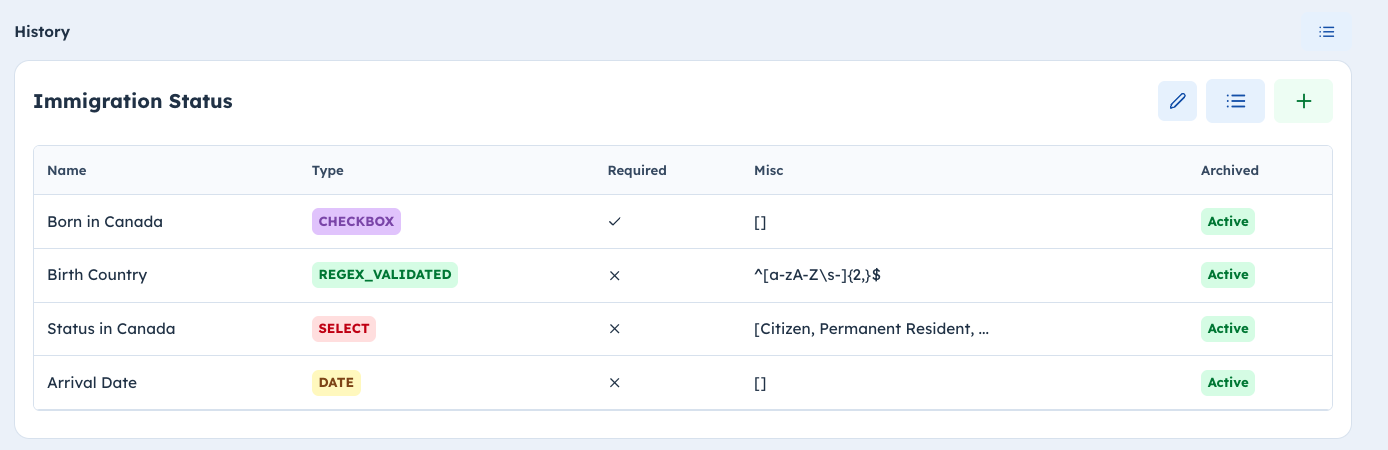
Reading a group card
A group card shows the fields inside that group.
The table includes:
- Name: the field name
- Type: the field type
- Required: whether the field must be filled
- Misc: extra setup details, such as select options or a regex pattern
- Archived: whether the field is active or archived
The card actions include:
- Edit Group: update the group settings
- Reorder Fields: drag fields into a new order
- Add Field: create a new field in this group
Adding a field
Use Add Field from the group card.
When creating a field:
- enter the field name
- choose the field type
- decide whether it is required
- add a description if users need context
- add type-specific settings when needed
After saving, the field appears in the group table.
Editing a field
Click a field row in the group table to open the update dialog.
When editing an existing field:
- the field name can be updated
- required/optional can be changed
- description can be updated
- archive state can be changed with Is Archived
- field type is disabled and should not be changed after creation
Archiving is the right choice when a field should no longer be used but its history should remain available.
Reordering fields
Use Reorder Fields from the group card. The button is enabled when the group has at least two fields.
In the reorder dialog:
- drag fields into the order you want
- archived fields may still appear in the reorder list
- save the order
The saved order controls how fields appear in forms and displays.
Field types
Use the field type that matches the data you really want.
- String: short text or simple free-form values.
- Select: one selected option from a fixed list. Select fields need at least two options.
- Address: address text.
- Date: date values.
YYYY-MM-DDis the simplest safe format. - Regex Validated: text that must match a pattern.
- Checkbox: true/false values.
- Document: uploaded files.
- Phone Number: structured phone-number values.
Important:
- Field type is chosen when the field is created. Plan before creating large batches of fields.
- Archive fields you no longer use. Archived fields are preserved but hidden from active forms.
- Document fields are uploaded and removed through document controls, not typed like normal text fields.
Select fields
Use a select field when the answer should come from a fixed list, such as transportation method, previous school type, or consent category.
For select fields:
- add the available options
- keep option names short and clear
- avoid changing option meaning after families or staff have already used the field
Regex validated fields
Use a regex validated field when the answer must follow a strict pattern.
Examples:
- local ID format
- registration number format
- passport or document number format
Use regex only when the pattern is stable and easy to explain. If the rule changes often, a normal string field is usually easier for users.