Access Rules and Visibility
Access rules and visibility decide who can see a group, who can update it, and when it appears for a student status.
Access Rules
Access rules control who can read or write a group and its entries. Create access rules first, then attach them to custom field groups.
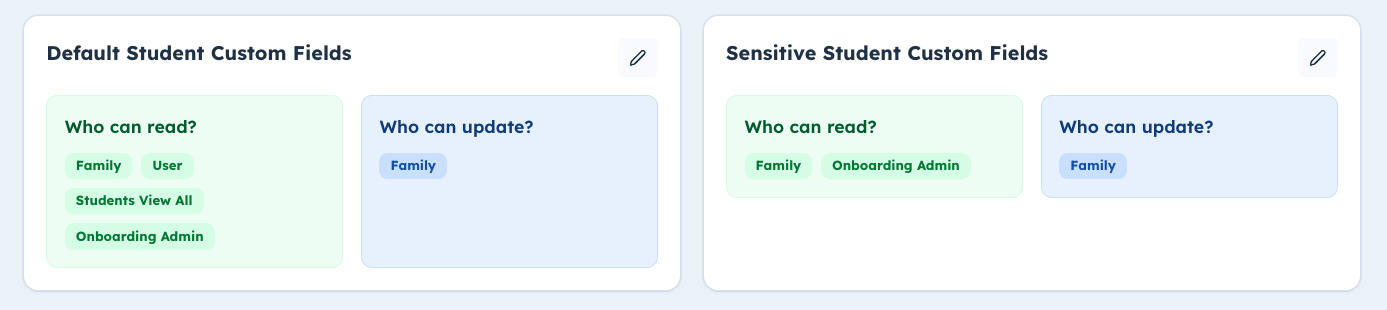
Rule actions:
- Allow Read
- Allow Write
Rule targets:
- User: the user connected to the record.
- Family: family members connected to the record.
- Staff permission: staff members with a selected permission.
How rules are evaluated:
- A user needs a matching allow rule.
- Groups, fields, entries, and approval status all use the group's access rules.
- Teacher custom fields cannot use Family as a target.
Who can manage structure:
- Creating groups requires Full Organization Settings Access.
- Updating groups requires Full Organization Settings Access.
- Creating or updating fields requires Full Organization Settings Access.
- Creating or updating access rules requires Full Organization Settings Access.
Who can approve review groups:
- Organization Super Admin
- Onboarding Admin
Creating or editing an Access Rule
In the access rule dialog, set:
- the rule name
- direct access for the user or family
- staff permissions that can read
- staff permissions that can update
The exact direct-access questions change by user type:
- Student rules can include student and family access.
- Parent rules can include parent and same-family parent/guardian access.
- Teacher rules include teacher access.
Student status visibility
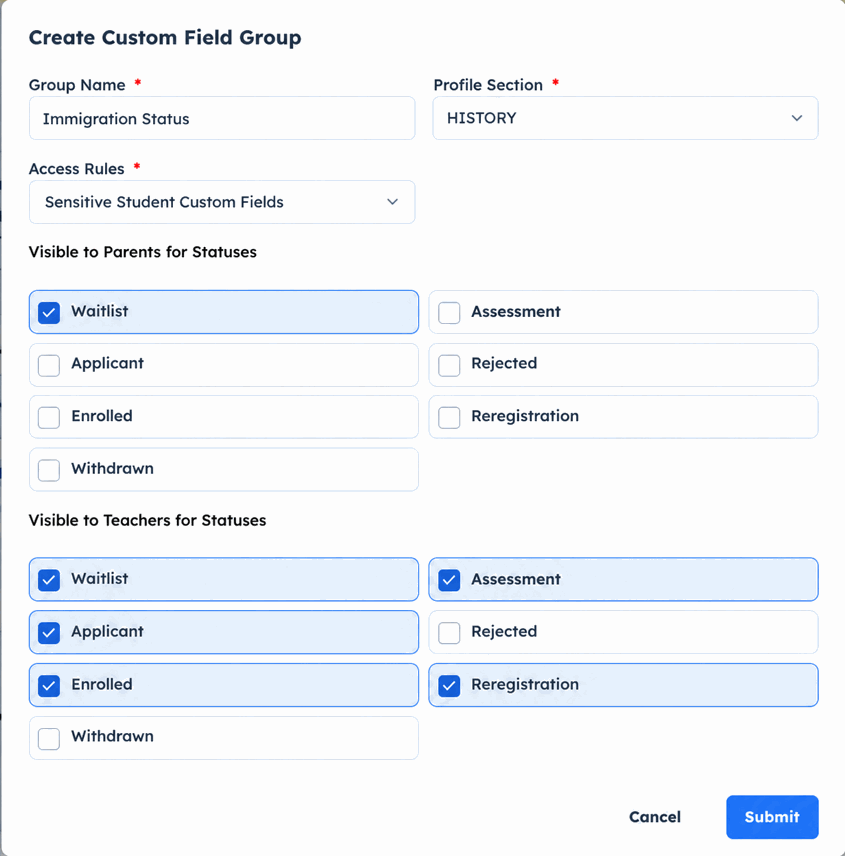
Student groups have two status visibility lists:
- Visible to Parents for Statuses
- Visible to Teachers for Statuses
A student group appears for a status only when all of these are true:
- The group belongs to the Student user type.
- The group's profile section is active in student profile settings.
- The group has at least one active field.
- The selected student status is included in the correct visibility list.
- The viewer has read access through the group's access rules.
Which visibility list is used:
- Parents and students use Visible to Parents for Statuses.
- Teachers and organization owners use Visible to Teachers for Statuses.
For parent required actions, the group must also allow Family write access. This is what makes the group fillable by parents.
Parent group visibility
Parent groups appear when:
- the group belongs to Parent
- the group's profile section is active for parents
- the viewer has access
- the group has at least one active field
Parent custom fields are shown with parent or guardian information, not inside the student's own custom-field sections.
Teacher group visibility
Teacher groups appear when:
- the group belongs to Teacher
- the group's profile section is active for teachers
- the viewer has access
- the group has at least one active field
Teacher custom fields are for staff profile data such as certifications, specializations, employment details, or emergency contact data.