Prepare Re-registration for the Coming School Year (Zero-Miss Checklist)
Goal
Prepare all required settings so schools can safely open re-registration for the coming school year with no fee, tuition, field-access, or email-template gaps.
When to run this
Run this before opening re-registration for the next school year.
Example:
- Active school year:
2025-2026 - Coming school year to configure everywhere:
2026-2027
This checklist belongs to Admission & Enrollment -> New School Year. In some UI versions, the same pages may still appear under Organization Settings navigation labels.
Do Not Start the Wizard Until This Is Checked
- I confirmed the exact coming school year value (example:
2026-2027) and will reuse this exact value in every step. - Student custom fields, access settings, and active profile sections are verified.
- Grade-level Registration and Reregistration fees are verified for every grade and saved.
- Tuition is verified and saved for
Rates,Additional Fees,Discounts, andPlansfor the coming school year. - Required email templates are configured.
- I reviewed Critical Blockers below.
Critical Blockers (Read First)
Phase 1 (Setup Students) will fail if there are still students in Reregistration status in the active school year.
Error:
Cannot Start Reregistration for Coming School Year if there are students in reregistration status for the active school year, please enroll or withdraw them first
If this happens:
- Go to
Re-registration -> List. - Filter/review students still in
Reregistrationfor the active year. - For each student, complete one action:
Enroll, orWithdraw
- Return to
Admission & Enrollment -> New School Year -> Re-registration Wizard. - Run
Setup Studentsagain.
1) Verify Student Custom Fields Setup
Path: Organization Settings -> Custom Fields -> Student Fields
What to check:
- In
Active STUDENT Profile Sections, clickEditand confirm needed sections are active. - For each custom field group, click
Editand verify:Profile SectionGroup Access SettingsEntries Access SettingsVisible to Parents for StatusesincludesReregistrationif parents must fill it.Visible to Teachers for StatusesincludesReregistrationif teachers must access it.
- Add/update/remove fields so only required data is collected.
- Confirm
Student Primary ID Fieldis correct.
Definition of done:
- All required groups are in active sections.
- Required groups/entries are visible for
Reregistrationstatus. - Primary ID field is confirmed.
Common mistakes and impact:
- Mistake:
Reregistrationnot selected in parent visibility.
Impact: Parents cannot fill required fields during re-registration. - Mistake: Group assigned to inactive profile section.
Impact: Group is hidden and skipped.
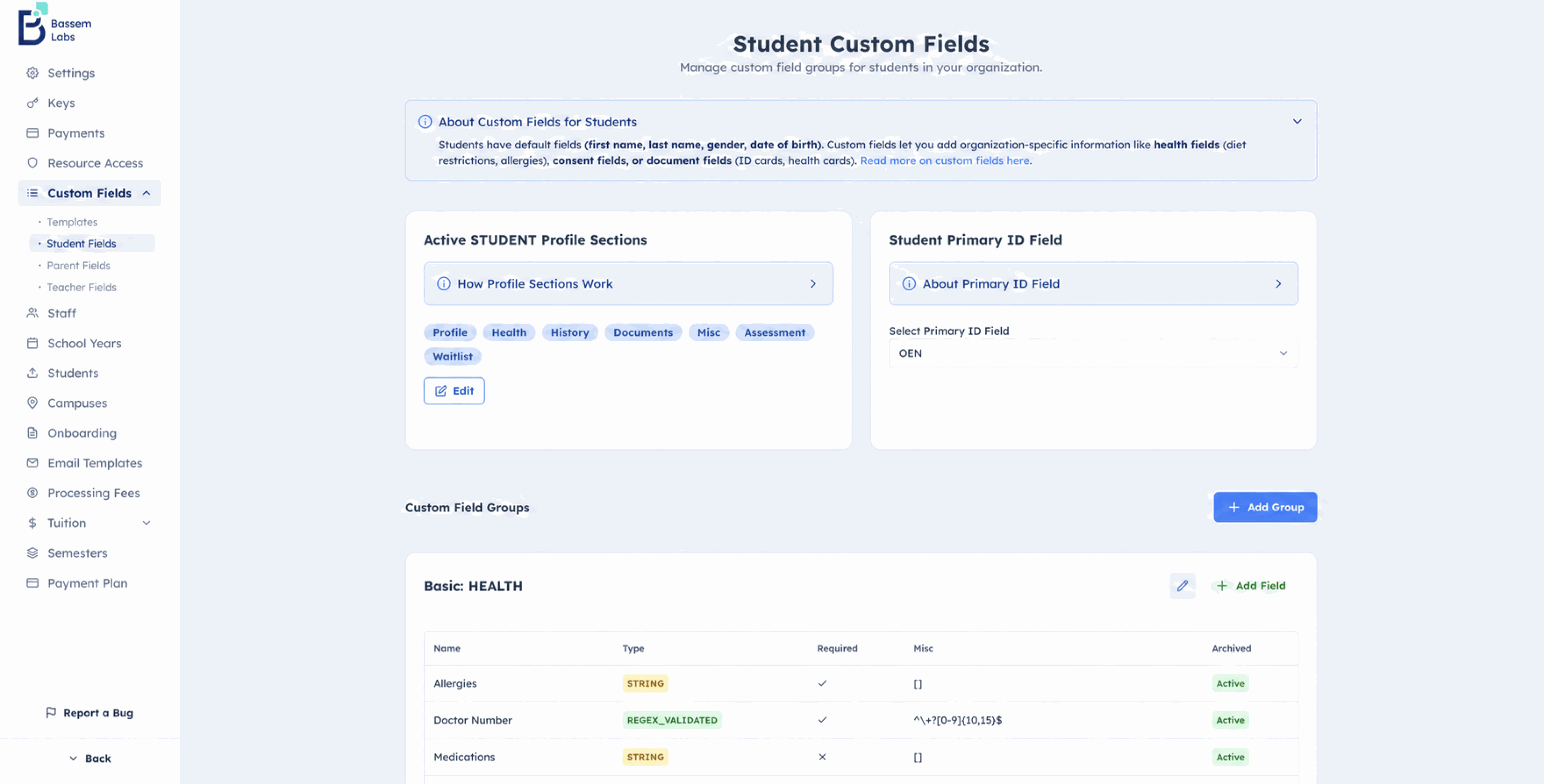 Screenshot callouts: (1) Active profile sections, (2) Student Primary ID field
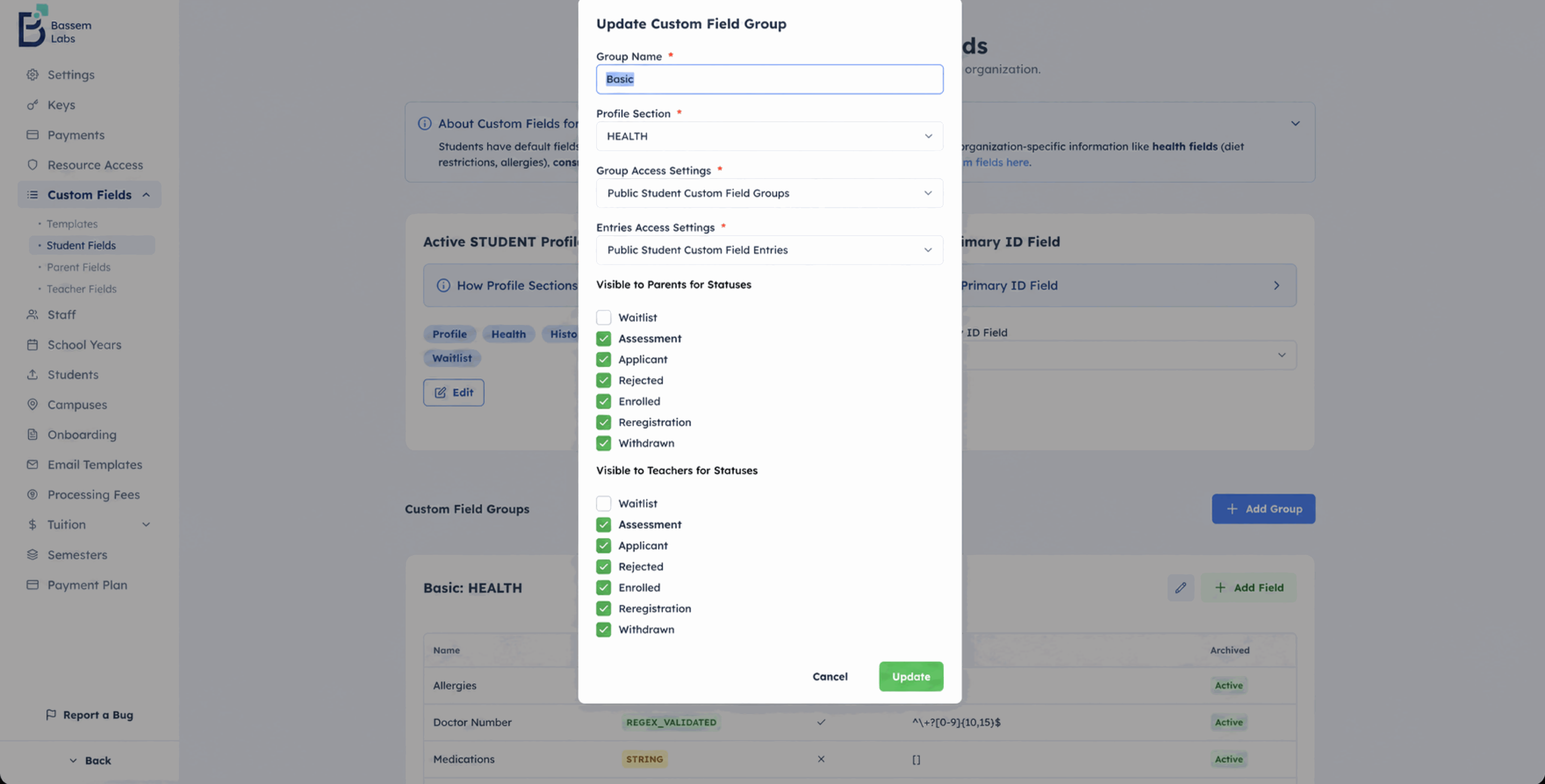 Screenshot callouts: (3) Group Access Settings, (4) Entries Access Settings, (5) Visibility for Reregistration status
2) Configure Grade Fees for Every Grade
Path: Admission & Enrollment -> New School Year -> Grade Fees
Older navigation: Organization Settings -> Onboarding
What to check:
- Review
Waitlist FeeandAssessment Feeif admissions flow needs them. - In
Grade Fees, open each grade one by one. - Verify both sections exist and are configured:
Registration FeesReregistration Fees
- For each section, verify:
Fee TitleFee Description- At least one fee line item with
Title,Description,Price,Quantity
- Click
Save Changes.
Definition of done:
- Every grade has valid
Registration FeesandReregistration Fees. - Save operation is completed successfully.
Common mistakes and impact:
- Mistake: One grade is left unconfigured.
Impact: Fees/invoices for that grade are not generated. - Mistake: Fee item added but page not saved.
Impact: Changes are lost.
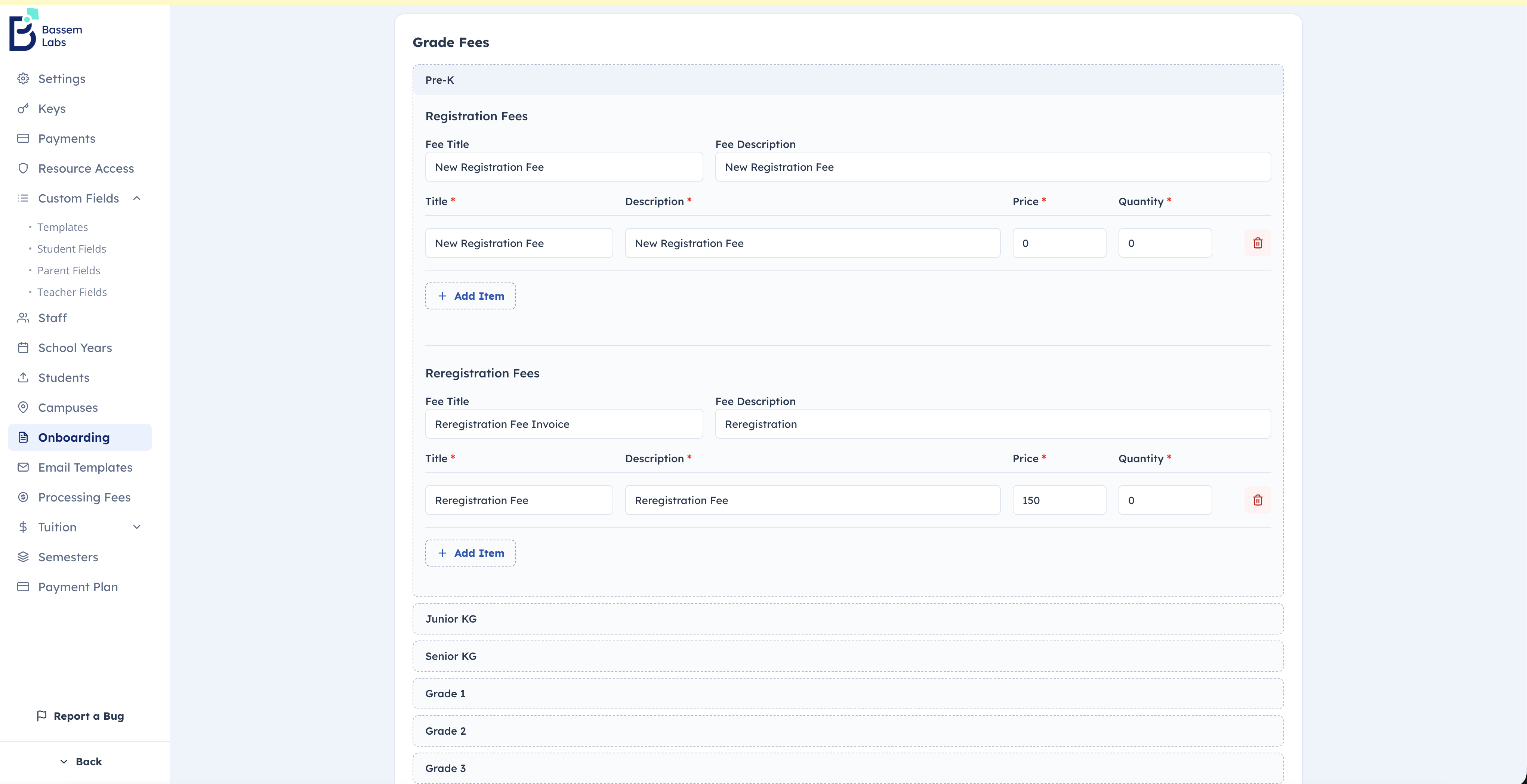 Screenshot callouts: (1) Per-grade sections, (2) Registration Fees, (3) Reregistration Fees, (4) Save changes
3) Configure Tuition for the Coming School Year
Path: Organization Settings -> Tuition
Each Tuition page has its own School Year filter. You must re-select the coming school year on every page before saving.
3.1 Rates
- Open
Rates. - Set
School Year = coming school year(example:2026-2027). - Verify grade rates.
- Click
Save Changes.
Definition of done:
Ratesis saved withSchool Year = coming school year.
3.2 Additional Fees
- Open
Additional Fees. - Set
School Year = coming school yearagain. - Verify fees.
- Click
Save Changes.
Definition of done:
Additional Feesis saved withSchool Year = coming school year.
3.3 Discounts
- Open
Discounts. - Set
School Year = coming school yearagain. - Verify discounts.
- Click
Save Changes.
Definition of done:
Discountsis saved withSchool Year = coming school year.
3.4 Plans
- Open
Plans. - Set
School Year = coming school yearagain. - Verify plans.
- Click
Save Changes.
Definition of done:
Plansis saved withSchool Year = coming school year.
Common mistakes and impact:
- Mistake: Only
Ratesis updated for coming year, other Tuition pages stay on active year.
Impact: Parent charges/plans/discounts can be wrong or incomplete. - Mistake: Correct year selected but not saved on one page.
Impact: Inconsistent setup across tuition pages.
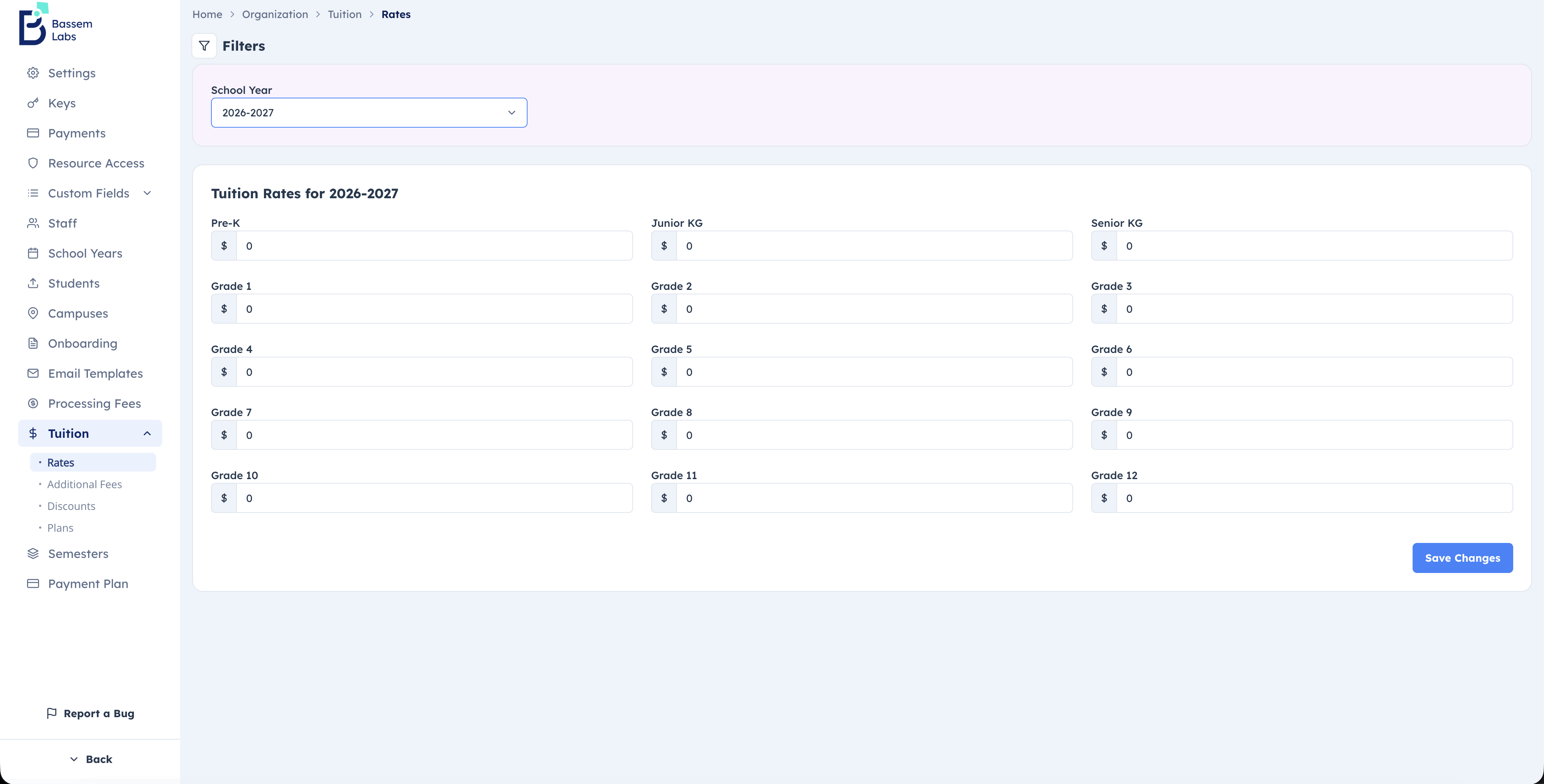 Screenshot callouts: (1) School Year filter, (2) Tuition values, (3) Save changes
4) Verify Email Templates Used in Re-registration
Path: Organization Settings -> Email Templates -> Parents -> Admission & Enrollment
Required templates:
Reregistration Invitation EmailParent Withdraw Reregistration Student Email
Definition of done:
- Required templates exist and are active/current.
Common mistakes and impact:
- Mistake: Template missing or outdated.
Impact: Parents receive wrong messaging or no messaging.
5) Run the Re-registration Wizard (In Order)
Path: Admission & Enrollment -> New School Year -> Re-registration Wizard
Older navigation: Organization Settings -> School Years
If Coming school year is missing, add the coming school year first, then return.
Run phases in order:
Setup Students(Phase 1)
Moves enrolled students intoReRegistrationfor the coming school year and advances grade.Reset Custom-Field Approvals(Phase 2)
Resets approved custom-field groups toRequiredToFillfor re-registration students.Send Emails(Phase 3)
Sends re-registration invitation emails to parents.
Definition of done:
- Phase 1 completed.
- Phase 2 completed.
- Phase 3 completed.
Common mistakes and impact:
- Mistake: Run phases out of order.
Impact: Later phases stay locked or workflow is incomplete. - Mistake: Ignore Phase 1 blocker error.
Impact: Re-registration never starts.
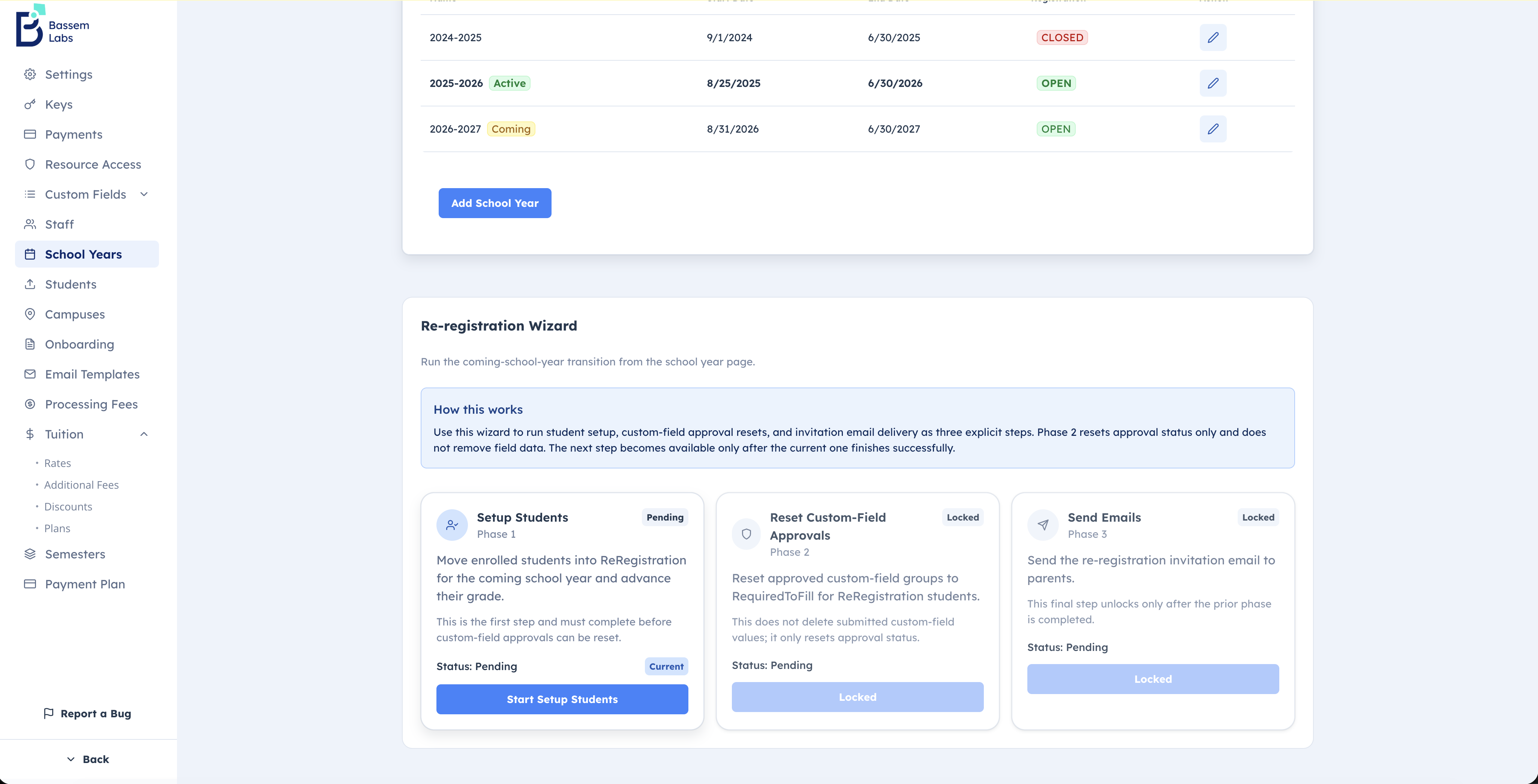 Screenshot callouts: (1) Phase 1 Setup Students, (2) Phase 2 Reset Custom-Field Approvals, (3) Phase 3 Send Emails
Phase 2 resets approval status only. It does not delete submitted custom-field values.
Settings Matrix (Path + Field + Expected Value)
| Path | Field | Expected Value |
|---|---|---|
| Custom Fields -> Student Fields | Active STUDENT Profile Sections | Required sections are active |
| Custom Fields -> Student Fields -> Group Edit | Visible to Parents for Statuses | Includes Reregistration when needed |
| Custom Fields -> Student Fields -> Group Edit | Visible to Teachers for Statuses | Includes Reregistration when needed |
| New School Year -> Grade Fees | Registration Fees | Configured for every grade |
| New School Year -> Grade Fees | Reregistration Fees | Configured for every grade |
| Tuition -> Rates | School Year | Coming school year |
| Tuition -> Additional Fees | School Year | Coming school year |
| Tuition -> Discounts | School Year | Coming school year |
| Tuition -> Plans | School Year | Coming school year |
| Email Templates -> Parents -> Admission & Enrollment | Reregistration Invitation Email | Exists and reviewed |
| Email Templates -> Parents -> Admission & Enrollment | Parent Withdraw Reregistration Student Email | Exists and reviewed |
Final Go/No-Go Gate (Before Opening Re-registration)
- Custom fields and status visibility are verified.
- Active profile sections are verified.
- Grade fees are configured for every grade and saved.
- Tuition
Rates,Additional Fees,Discounts, andPlansare each saved for the coming school year. - Required email templates are configured.
- Wizard phases completed in order with no blocker errors.
If any box is unchecked: No-Go. Do not announce re-registration yet.
2-Minute Validation After Wizard Completion
- Confirm
Setup Students,Reset Custom-Field Approvals, andSend Emailsall show completed status. - Open
Re-registration -> Listand verify students moved to re-registration for coming year. - Spot-check one student/parent flow to confirm required actions and fields appear as expected.
Run Record (Accountability)
- Completed by:
- Verified by:
- Completion date:
- Active school year:
- Coming school year:
- Notes/issues found: